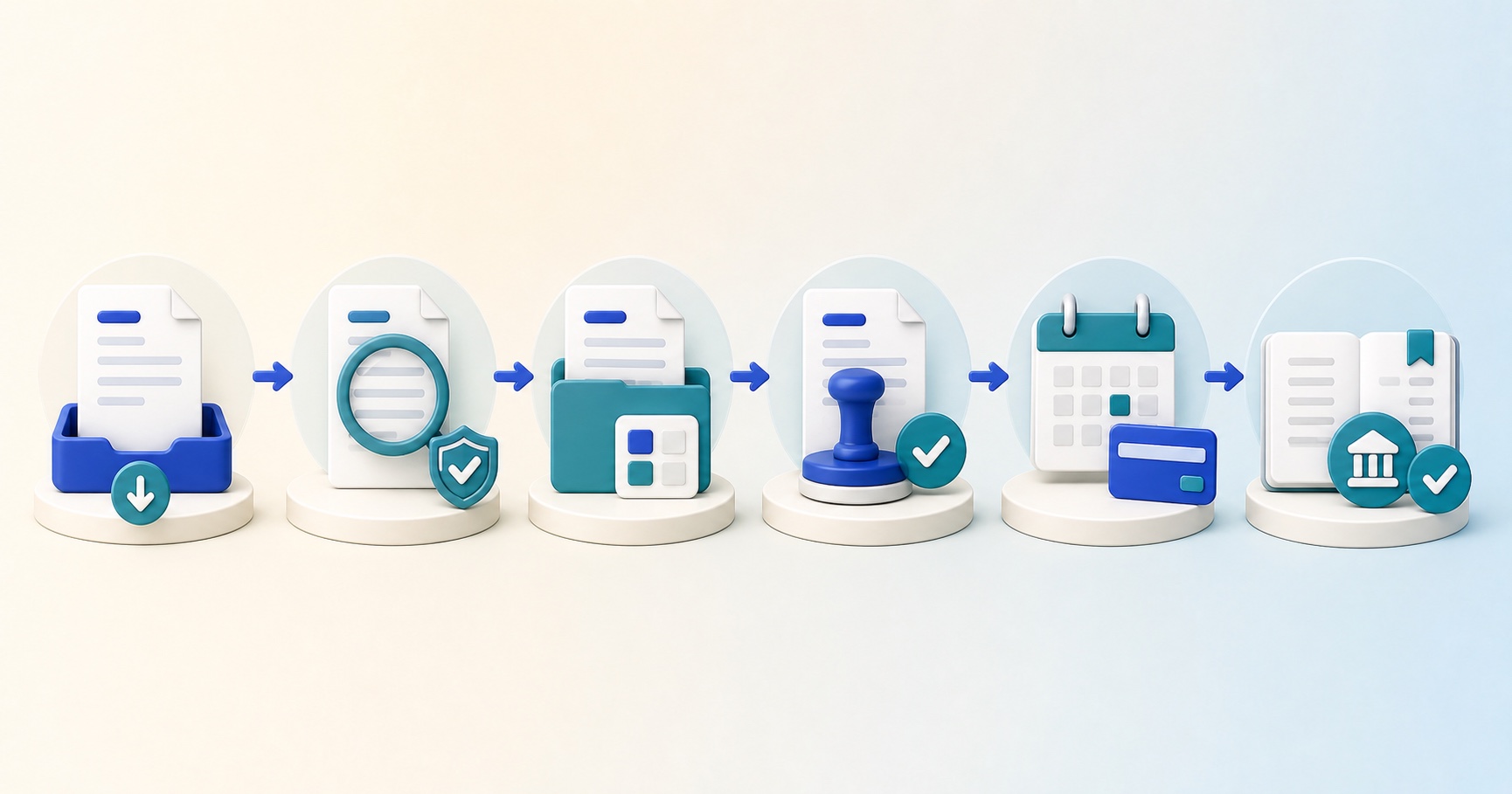
Accounts payable automation for Xero and QuickBooks Online adds a controlled invoice process before a supplier bill reaches the accounting ledger. It captures the original document, extracts invoice data, checks the supplier and totals, applies coding, routes approval, resolves exceptions and publishes an authorised unpaid bill with supporting evidence.
The accounting platform remains the system of record. Automation should not create a second supplier ledger, hide failed exports or make it difficult to understand why a bill was created. Its purpose is to prepare a complete and reviewed transaction, send it once, and preserve the connection between the source invoice, the approval decision and the final accounting record.
This guide explains the complete operating model for both platforms. It covers the common workflow first, then the differences finance teams must account for when mapping suppliers, accounts, tax treatments, reporting dimensions, purchase orders, attachments and publication states. It also includes a practical implementation plan, test pack, control framework and measures for judging whether the change is working.
What accounts payable automation means for Xero and QuickBooks Online
Accounts payable automation is a connected process that turns a supplier invoice into a reviewed and authorised bill in Xero or QuickBooks Online while retaining human control over exceptions, approval policy and payment release.
The phrase covers more than optical character recognition. Reading a supplier name and total from a PDF saves some typing, but it does not establish whether the supplier is genuine, whether the invoice is duplicated, whether the goods were ordered, whether tax is coded correctly or whether the person approving the spend has sufficient authority. Complete automation coordinates all of those decisions.
A sound design separates routine work from judgement. Clear invoices from known suppliers can move quickly through validation and coding. Unusual documents stop with a reason and an owner. Finance can correct the data, request information, reject the invoice or approve a controlled variance without losing the original evidence.
The final output is normally an unpaid supplier bill. Xero or QuickBooks Online then carries the liability into aged payables, cash planning, payment processing and financial reporting. Approval of the commercial purchase and authorisation of the bank payment remain separate decisions, even when the same finance team oversees both.
The roles of Xero, QuickBooks Online and the automation layer
Xero and QuickBooks Online both maintain supplier records, accounts, tax settings, unpaid bills and financial reports. Each platform has its own terminology and reference model, but the operational boundary is similar: the accounting platform owns the ledger, while the automation layer owns the work required to prepare an invoice for that ledger.
Automation workspace
Receives documents, extracts lines, checks duplicates, matches purchases, routes approvals and records exception decisions.
Xero
Receives a purchase bill against a Xero contact, account codes, tax types and optional tracking categories.
QuickBooks Online
Receives a bill against a QuickBooks vendor, expense or item lines, tax treatment and available reporting references.
Finance operations
Reconciles the payable, manages due dates, prepares payment and closes the accounting period in the ledger.
For Xero, supplier identity should resolve to the relevant contact record rather than depending only on a typed name. Account codes, tax types and tracking options must exist in the connected organisation. For QuickBooks Online, the bill must reference the correct vendor and valid company records such as accounts, tax codes, terms and any classes or locations used by the business.
These reference lists change. Suppliers are added or archived, accounts are renamed, tax settings are updated and reporting dimensions evolve. A dependable integration refreshes active reference data and prevents stale choices from being published silently. Where a reference is no longer valid, the invoice should return to a visible exception state.
Neither platform should be treated as a generic destination for flat text. A supplier name displayed on screen is not the same as a stable supplier identifier. An account label is not enough if several accounts share similar names. The automation system should retain the identifiers returned by the connected company and show people the readable labels while publishing the correct underlying references.
The complete invoice workflow from receipt to accounting
A reliable workflow begins before data extraction and continues after publication. The following sequence works for either accounting platform, although the exact fields and validation responses differ.
- Receive the original invoice. Accept a document through a dedicated email address or controlled upload. Preserve the original file, receipt time, sender context and company destination.
- Classify the document. Distinguish invoices, credits, statements, reminders and unrelated attachments. Route unsupported documents for review rather than forcing them into an invoice template.
- Extract header and line data. Read supplier identity, invoice number, bill date, due date, currency, purchase order reference, descriptions, quantities, unit prices, net amounts, tax and total.
- Validate arithmetic and completeness. Confirm that lines reconcile to subtotals and totals, required fields are present and the currency and date formats are plausible.
- Resolve the supplier. Match the invoice to an active Xero contact or QuickBooks vendor using a stable accounting identifier, with finance review when confidence is low.
- Check for duplicates. Compare supplier, invoice number, amount, date, currency and document fingerprint with invoices already received and bills already published.
- Match purchasing evidence. Where purchase orders are used, compare the invoice with the authorised order and any receipt evidence. Send price, quantity or supplier differences to an owner.
- Apply accounting coding. Select valid accounts, tax treatments, descriptions and reporting dimensions from the connected organisation or company.
- Route approval. Determine approvers from entity, department, supplier, value, project or exception type. Record every decision, comment, edit and delegation.
- Run publication checks. Reconfirm the supplier, account, tax, totals, approval state and document attachment immediately before creating the bill.
- Publish once. Send one controlled request, store the returned Xero or QuickBooks identifier and prevent retries from creating a second bill.
- Reconcile and monitor. Compare approved invoices with published bills, investigate failures and track changes that occur in the accounting platform after publication.
Not every invoice will complete the sequence without interruption. The workflow should make interruption normal and manageable. A missing supplier, invalid account or duplicate warning is not a technical failure by itself. It becomes a control failure only when people cannot see it, understand it or take an authorised next action.
Map invoice data deliberately
Data mapping determines whether a clean looking approval becomes a useful accounting record. Before implementation, document every source field, review decision and destination field. Mark which values come from the invoice, which come from the accounting platform, which are derived by a rule and which require human confirmation.
Supplier identity
The invoice may show a legal name, trading name, address, registration number, tax number, bank details and email domain. The accounting platform may use a shorter display name. Do not assume an exact text match is sufficient. Establish a controlled relationship between the supplier in the automation workspace and the Xero contact or QuickBooks vendor.
When a new supplier appears, decide whether the automation process can request creation or whether supplier setup must happen separately. Supplier creation is sensitive because bank and tax details can affect future payments. Use independent verification, explicit approval and a clear record of who created or changed the master record.
Invoice reference and dates
Preserve the supplier invoice number exactly where possible because it supports duplicate checks and supplier queries. Normalise only what is needed for matching, and keep the original value for evidence. Review invoice date, receipt date, due date and payment terms separately. A calculated due date should not silently override a date stated on the invoice without an agreed rule.
Currency and amounts
Confirm that the supplier and company can use the invoice currency. Record whether line amounts are tax inclusive or tax exclusive. Check rounding at line and document level. Foreign currency invoices may require an exchange rate chosen by the accounting platform or supplied under company policy. Test both the accounting currency result and the original currency payable.
Expense and item lines
Xero purchase bills commonly use account coded lines and may include item references where configured. QuickBooks Online bills can use expense details, item details or a combination depending on the company process. The automation design must preserve the destination line type rather than assuming every invoice can be flattened into one expense total.
Line descriptions should be useful in the ledger, but they should not replace structured references. Account, item, customer, project, class, location, tracking category and tax values should resolve to active destination records. If a value is invalid or unavailable, stop the line before publication and show the reviewer exactly what must change.
Tax, reporting dimensions and purchase orders
Tax treatment needs accounting context
An invoice showing twenty per cent tax does not by itself identify the correct ledger treatment. Domestic VAT, reverse charge, import tax, exempt supplies, zero rated items and amounts outside the scope can produce similar looking numbers while requiring different tax codes and reporting treatment. The automation system should use active codes from the connected organisation and let finance review uncertain cases.
For Xero, map to the tax types available for the relevant account and organisation. For QuickBooks Online, map to the enabled tax configuration used by the company. Do not invent a generic code because the displayed percentage matches. Validate whether the account and tax combination is permitted and whether the line is entered as inclusive, exclusive or without tax.
Credit notes deserve separate tests. Confirm sign handling, tax reversal, supplier relationship, original invoice reference and how the credit appears in aged payables. A negative invoice forced through an ordinary bill path may appear correct in one screen while producing the wrong operational state.
Reporting dimensions must survive publication
Many finance teams analyse spend by department, region, project, customer or cost centre. Xero commonly represents this context through configured tracking categories. QuickBooks Online may use classes, locations, customers, projects or other available references depending on the subscription and company settings. The integration should discover what is enabled rather than promising the same structure for every company.
Decide whether a dimension belongs to the whole bill or to individual lines. A software invoice may serve several departments, while rent may belong to one location. If the accounting platform allows only a particular level of assignment, define how the automation process will split lines or ask for a single choice. Test resulting reports, not merely the bill screen.
Purchase orders and matching
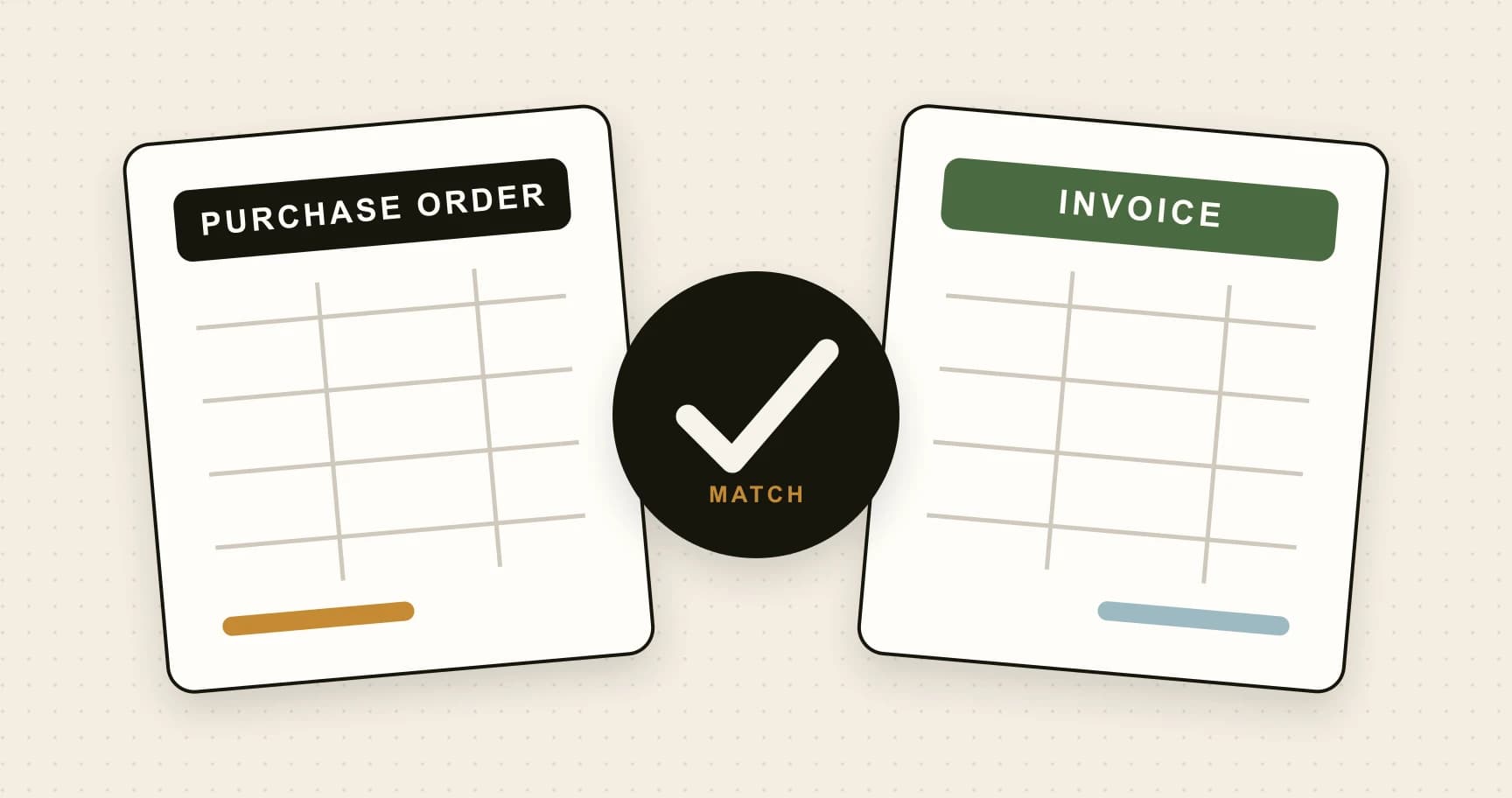
A purchase order records authorised intent before the supplier invoice arrives. Two way matching compares the invoice with the order. Three way matching also considers receipt evidence. Automation can compare supplier, item, quantity, unit price, currency and total, then apply agreed tolerances.
The accounting connection does not remove the need for a purchasing source. If purchase orders originate outside Xero or QuickBooks Online, the automation layer needs a reliable feed or a controlled reference. Define which system owns order status, remaining quantity and closure. When several invoices draw down one order, calculate the cumulative position so each invoice is assessed against what remains.
Exceptions should state the exact variance. “Match failed” is not enough. A useful message explains that quantity exceeds the remaining order by five units or that the invoiced unit price is three per cent above the authorised price. The responsible buyer can then confirm receipt, obtain a corrected invoice or approve a documented variance.
Approval, duplicate prevention and access control
Design approval around responsibility
The approver should understand the purchase and hold sufficient authority. Routing every invoice to a senior executive creates delay without necessarily improving control. Define rules by company, supplier, department, project, value and exception risk. Use the fewest decisions that address the actual risk.
Approval rules need absence cover and escalation. Delegation should have a start date, end date and approved scope. Escalation should notify the right owner without quietly changing who is accountable. Prevent inappropriate self approval and record any authorised override with a reason.
Use duplicate checks at more than one point
Check when the invoice enters the workflow, again before approval where relevant, and immediately before publication. Compare more than the invoice number because suppliers may change punctuation, leading zeros or reference formats. Amount, currency, date, supplier and document fingerprint add useful signals.
Also consider bills entered directly in Xero or QuickBooks Online. An automation workspace can know only what it can read or what has been synchronised. Reconcile destination bills and define how direct entry is identified. A duplicate warning should block routine publication until someone reviews the evidence; it should not automatically delete or reject either record.
Restrict access by role and company
Separate invoice preparation, approval, supplier administration, integration administration and payment release where practical. A person who can edit coding does not automatically need permission to change connection settings. A user working for one entity should not see invoices or reference data belonging to another entity unless that access is approved.
Use individual accounts, strong authentication and prompt removal when someone leaves. Review powerful access more frequently than ordinary read access. Record who connected each Xero organisation or QuickBooks company, who can refresh or disconnect it, and who can retry a failed publication.
A practical implementation plan
Implementation should begin with process evidence, not a software demonstration. Choose a representative period and examine how invoices actually arrive, where coding is decided, how approval authority works, which exceptions recur and how bills are finally entered. Include month end pressure, staff absence and unusual suppliers.
Phase one: define scope and ownership
List the legal entities, Xero organisations or QuickBooks companies, invoice channels, monthly volumes, currencies, purchase order processes and approver groups in scope. Name an operational owner, accounting owner, technical owner and executive sponsor. Decide which outcomes matter, such as less data entry, faster approval, fewer duplicates or better audit evidence.
Phase two: clean reference data
Review suppliers or vendors for duplicates, inactive records and inconsistent names. Review the chart of accounts, tax settings, terms, tracking categories, classes, locations and projects. Archive or correct what should not be used. Automation makes reference data more visible, but it cannot make unclear accounting policy disappear.
Phase three: document rules
Write down required fields, duplicate thresholds, coding defaults, purchase order tolerances, approval limits, delegation, urgent processing and publication conditions. Identify which rules are global and which vary by entity. Avoid burying business policy inside one person's configuration choices.
Phase four: connect a controlled scope
Authorise one test company or a limited production entity first. Import active reference data and confirm that readable labels correspond to the expected destination identifiers. Restrict integration permissions to what the workflow needs. Record the connection owner and recovery procedure.
Phase five: configure and test
Build invoice fields, coding rules, approval routes, exception states and publication mapping. Use real but appropriately protected sample documents. Compare every created bill with the approved invoice line by line. Test failure and retry deliberately, not only the ideal path.
Phase six: pilot and expand
Run a limited supplier or entity group through the complete process. Hold short reviews with processors and approvers, correct rules and measure the result. Expand only after publication, attachments, reconciliation and support ownership are stable. Keep a manual contingency for genuine outages without allowing it to become an invisible everyday bypass.
Build a test pack that reflects real accounts payable work
A clean one page domestic invoice proves very little. The test pack should represent routine volume, difficult documents and control failures. Use the same expected results for Xero and QuickBooks Online while adapting destination fields to each platform.
Format variation
Digital PDFs, scans, photographs, rotated pages, several invoices in one message, long line tables and credits.
Coding variation
Several accounts, mixed tax treatments, dimensions, item lines, discounts, freight and foreign currency.
Decision variation
Value thresholds, parallel review, delegation, rejection, correction, escalation and urgent handling.
Recovery variation
Inactive suppliers, archived accounts, invalid tax, disconnected companies, timeouts and repeated retries.
Include at least one invoice where the supplier name is similar to another supplier, one where the number resembles an existing bill, one where arithmetic does not reconcile and one where bank details have changed. Confirm that these become visible exceptions and cannot pass through only because extraction confidence is high.
For Xero, verify the contact, reference, dates, account codes, tax types, tracking options, line totals, currency and attachment. For QuickBooks Online, verify the vendor, transaction number, dates, expense or item detail, accounts, tax treatment, terms, reporting references, currency and attachment. Open the resulting reports and aged payables views to ensure the transaction behaves as expected beyond the entry screen.
Test publication idempotency. Interrupt the process after the accounting platform accepts a bill but before the automation workspace records success. A safe recovery should discover or recognise the existing destination record rather than create another. Repeat the test with an attachment failure, since the bill and its source document may be separate technical operations.
Record expected and actual results. A defect should identify the invoice, source field, approved value, destination value and relevant platform response. This evidence helps distinguish extraction errors, mapping errors, policy gaps, reference data problems and temporary connection failures.
Daily exception handling and troubleshooting
Once the workflow is live, most attention should move from routine typing to exceptions. Give each exception a category, owner, age and permitted actions. Finance should be able to filter the queue by company, supplier, reason and urgency.
Supplier not found
Confirm that the document belongs to the connected entity and that the supplier exists as an active Xero contact or QuickBooks vendor. Refresh reference data, check aliases and review whether a new supplier request is required. Do not create a supplier automatically from invoice text without the organisation's supplier controls.
Account or dimension unavailable
The account, tracking option, class, location or project may have been archived or may belong to another company. Refresh the relevant lists and ask the accounting owner whether the original coding remains appropriate. Avoid replacing an invalid value with a convenient generic account merely to clear the queue.
Tax code rejected
Check the connected company's active tax settings, the selected account, the invoice's inclusive or exclusive basis and the supplier's location. A rate shown on the document is only one input. Escalate unusual treatment to someone responsible for tax policy.
Duplicate candidate
Compare the source files and destination bills. Determine whether the supplier resent the same invoice, issued a revised document or legitimately reused a number. Record the decision. If the bill already exists in Xero or QuickBooks Online, link or mark the workflow record according to policy rather than publishing another.
Publication timeout
Do not retry immediately without checking whether the accounting platform accepted the first request. Search using the stored request reference, supplier, invoice number and amount. Retry only when the workflow can do so safely. Store the returned destination identifier as soon as it is available.
Attachment failed after bill creation
Keep the bill in a partial completion state, retain the source file and retry the attachment against the known bill identifier. Do not create a new bill simply because the evidence upload failed. Alert finance if the document remains unattached beyond the agreed service target.
Reconciliation, monitoring and success measures
Reconciliation proves that the integration is complete, not merely that it returned successful messages. At minimum, compare invoices approved for publication with bills created in Xero or QuickBooks Online. Investigate approved invoices without a destination identifier, destination bills without a known source, duplicate identifiers and failed attachments.
Monitor the age of invoices in each state. A queue that captures quickly but waits for coding or approval has moved the bottleneck rather than removed it. Report exceptions by cause so recurring supplier, policy or reference data problems can be fixed at source.
Useful measures include extraction correction rate, straight through processing rate, median approval time, aged exceptions, duplicate warnings confirmed, first publication success, attachment completion, direct ledger entry outside the workflow and the time from receipt to approved bill. Compare by supplier and entity because averages can hide concentrated problems.
Measure quality as well as speed. Sample published bills and compare supplier, reference, dates, currency, lines, accounts, tax and dimensions with the approved record and source document. Review whether approval followed current authority and whether changes after approval were visible.
At month end, reconcile the automation queue, ledger payables and invoices awaiting action. Define how late invoices, credits, disputed items and period changes are handled. If someone changes a bill directly in Xero or QuickBooks Online after publication, decide whether the automation record should display that change, alert finance or require a documented follow up.
How to choose automation software for Xero and QuickBooks Online
Start with your accounting configuration and control needs. A product may advertise a connection while supporting only summary bill creation. Ask what happens at line level, which reference lists are imported, how attachments are handled, whether credits and foreign currency are supported and what the user sees when publication fails.
Request a demonstration using your own representative test pack. Watch the complete path from document receipt to the bill inside Xero or QuickBooks Online. Do not accept a prepared screen as proof of mapping. Ask the supplier to create a bill, open it in the accounting platform, show the source attachment, trigger an invalid code and recover from a retry.
Evaluate approval depth separately from accounting connectivity. Check value limits, supplier rules, company scope, parallel and sequential decisions, delegation, reminders, escalation, self approval prevention, change history and export permission. Confirm whether the product can explain which rule selected each approver.
Review commercial fit using normal and peak invoice volume. Include user charges, company charges, invoice allowances, implementation, support, storage and contract term. Estimate internal time for configuration, supplier communication, testing and training. A lower subscription can cost more if finance must rebuild invoice lines or investigate unclear failures.
Review security and service ownership. Ask about authentication, encryption, access roles, processing locations, subprocessors, retention, deletion, incident response, backups and recovery. Confirm who in your organisation can connect accounting companies, change mappings and publish bills.
ArrowBill connects invoice capture, line review, approval and controlled bill publication with both platforms. It imports active accounting references so reviewers select values from the connected company, then retains the approval and publication result with the invoice. Explore the Xero integration and QuickBooks Online integration for the product specific workflow. Compare invoice-volume pricing and plan-specific approval and matching features before starting a trial.
Connect controlled invoice approval to Xero or QuickBooks Online
Capture supplier invoices, review every line, route the right approval and publish an authorised bill with its supporting document.
Frequently asked questions
What is accounts payable automation for Xero and QuickBooks Online?
It is a connected workflow that captures supplier invoices, validates and codes their data, routes approval and creates reviewed unpaid bills in Xero or QuickBooks Online with supporting evidence.
Does AP automation replace Xero or QuickBooks Online?
No. The automation layer manages invoice intake, checking, coding, approval and publication. Xero or QuickBooks Online remains the accounting ledger for payables, reporting and payment records.
Which invoice data should be checked before a bill is published?
Check supplier identity, invoice number, bill and due dates, currency, line descriptions, quantities, prices, accounts, tax treatment, reporting dimensions, totals, duplicate risk, approval evidence and the source attachment.
Can AP automation prevent duplicate bills?
It can reduce duplicate risk by checking several invoice signals before publication and controlling retries, but finance should still investigate warnings and reconcile bills entered directly in the accounting platform.
What is the main difference between Xero and QuickBooks Online bill mapping?
Both require a valid supplier and accounting references, but their destination models and terminology differ. Xero uses contacts, account codes, tax types and tracking categories, while QuickBooks Online uses vendors, expense or item details and the reporting references enabled for that company.
Should invoice approval happen before or after publication?
For a controlled workflow, the commercial and coding approval should normally be complete before the unpaid bill is published. Payment selection and bank authorisation remain separate later controls.
How should a failed Xero or QuickBooks publication be retried?
First check whether the accounting platform accepted the original request. Correct the stated supplier, account, tax, currency or connection problem, then retry through a process that cannot create a second bill.
How long does implementation take?
Timing depends on entity count, invoice variety, reference data quality, purchase order use and approval complexity. A focused pilot can move quickly, but expansion should follow successful testing, reconciliation and clear operational ownership.
 Published guide
 Published guide
 Published guide